 by
by In this tutorial, you'll find clear step-by-step instructions for sharing a calendar in Outlook 365, the new app, and web. It also explains how to re-send the calendar invite, manage permissions, add or remove users, and troubleshoot syncing issues.
How can I share a calendar in Outlook? Whether for work or personal planning, many people look for a simple way to let others see their schedule or help manage it. In general, Outlook makes this fairly easy, though the exact options and permissions depend on the version and account type. This article covers the full process from start to finish, with hopefully less confusion than Outlook settings sometimes create 😊
What is a shared calendar in Outlook?
shared calendar in Outlook is a calendar that other people can access when you allow them to. Depending on the permissions you assign, they may be able to view your schedule, see event details, edit calendar items, or even manage meetings and appointments on your behalf. Any events added or changes made to a shared calendar are automatically updated for every person who has access, so everyone always sees the latest version.
Shared calendars are often used at work so coworkers can check each other's availability and coordinate meetings more easily. They can also be useful for families, friends, or groups planning trips, events, appointments, or shared activities together.
Important things to know about Outlook calendar sharing
Before setting up a shared calendar in Outlook, here are a few useful details to keep in mind:
- Accounts. Calendar sharing is supported for Microsoft 365 work or school accounts, Outlook.com accounts, and Microsoft Exchange accounts. POP3 and IMAP accounts do not support it.
- Email clients. Shared calendars work reliably only between Outlook users. For third-party email clients, it may work just partially. For example, you can share your Outlook calendar with Google, but updates may be delayed or may not sync at all after the initial connection.
- Creating shared calendars. Outlook can only give access to calendars that already exist. If you want a dedicated shared calendar for a team, first create a new personal calendar and then make it available to other users.
- Calendar types. Sharing is not limited to the default calendars that Outlook creates automatically. You can also make any custom calendar available to others, though delegate access can only be assigned for a primary calendar.
- Ownership. You can only share calendars that belong to you. Calendars owned by other people cannot be re-shared from your Outlook.
- Organization policies. Depending on your company settings, calendar sharing may be limited to internal users or disabled completely. By default, people inside your organization can usually see when you are busy, though your IT administrator may configure this differently.
- Synchronization. The frequency of updates mainly depends on the recipient's email provider. Within the same organization, shared calendars usually sync within a few minutes. For external users, they can take more time to refresh.
How to share calendar in Outlook 365 – 2016
To share a calendar in the classic desktop Outlook application, including Outlook for Microsoft 365, Outlook 2024, 2021, 2019 and earlier versions, carry out these steps:
- In the Outlook Navigation pane, select Calendar.
- On the Home tab, in the Manage Calendars group, click Share Calendar and pick the one you want to make available to others. Alternatively, right-click your calendar in the left pane and select Sharing Permissions.
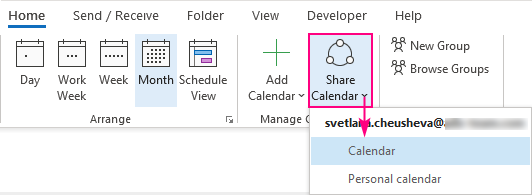
- The Calendar Properties dialog box opens on the Permissions tab, where you can view who currently has access. To invite someone new, click Add.
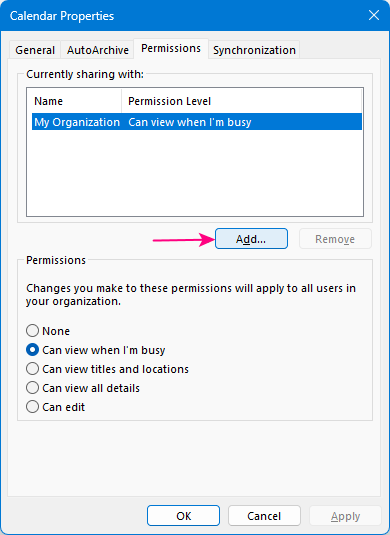
- In the Add Users window, find and select people from your Address book or Global Address List, then click Add. You can also type an email address directly into the Add box. When finished, click OK.
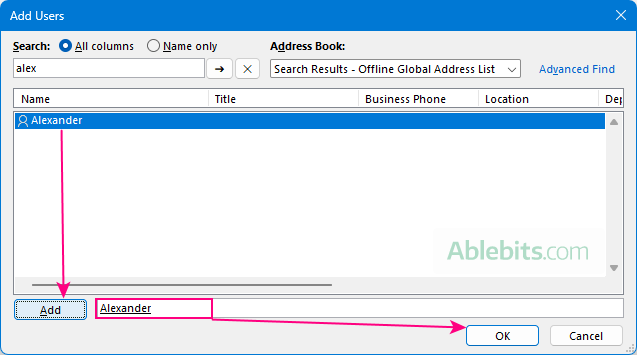
- Back in the Calendar Properties window, select the person and choose the level of access you want to provide to them. The default is Can view all details.
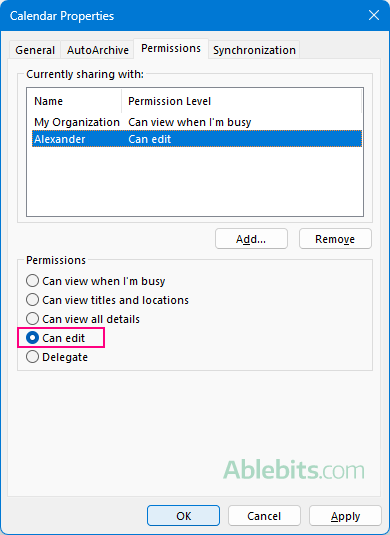
- Click OK to save the changes and close the window.
Note. When adding users, the prohibition sign (circle-backslash) next to someone's name indicates that the calendar cannot be shared with that user or group.
How to share calendar in new Outlook and web
In the new Outlook app, Outlook on the web (for Microsoft 365 work or school accounts), and Outlook.com (for personal accounts), the steps for sharing a calendar are basically the same.
- Open the Calendar module.
- On the Home tab, click Share Calendar or Share, depending on your Outlook app. If you have multiple calendars, select the one you want to make available to others. Alternatively, right-click the calendar in the left pane and choose Sharing and permissions.
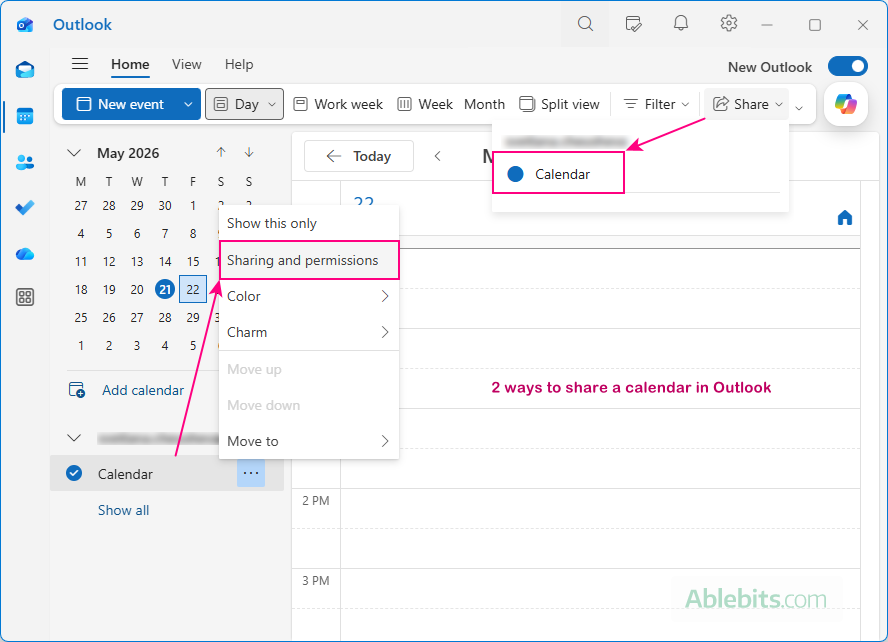
- In the Enter an email address or contact name box, type the person's name and select it from the suggestions. If it does not appear, enter the full email address and press Enter.
- Choose the permission level from the dropdown list next to the person's name.
- When everything is set, click Share. If you've changed your mind and do not want to send the invitation right now, click Remove (trash bin icon) instead.
- The screenshots for this tutorial are captured in new Outlook with Microsoft 365 work account. In Outlook on the web and Outlook.com, there may be minor differences in what you see, though essentially the instructions are the same.
- For calendar items marked private, only the time is visible to others, regardless of the permission level assigned. For people with Delegate access, you can allow to view private events by enabling the corresponding option.
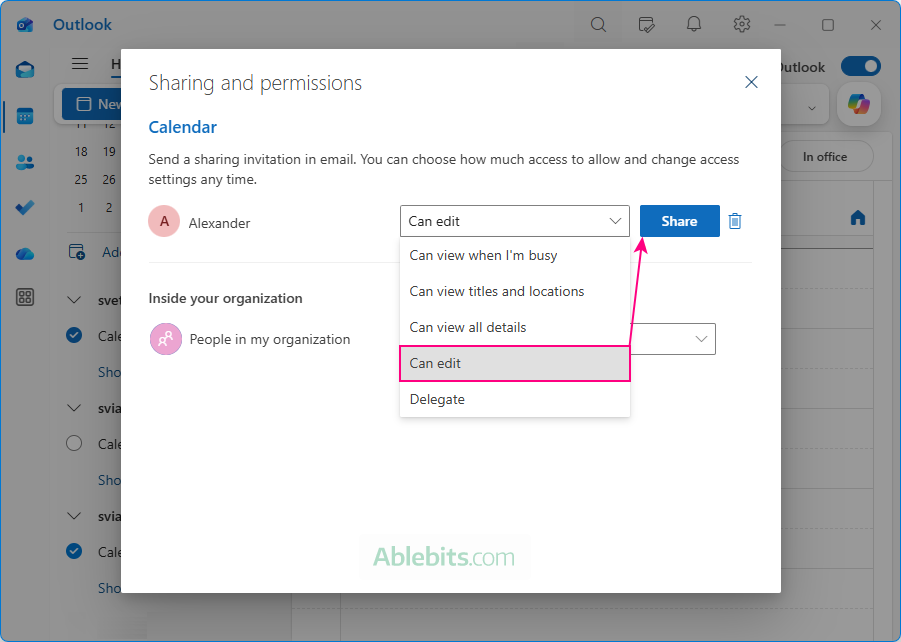
The sharing invitation is sent to the recipient immediately. After the invitee accepts it, a shared calendar is added to their Outlook.
Notes:
How to send a calendar invite in Outlook
When you give someone access to your Outlook calendar using the methods described above, Outlook automatically sends a calendar invitation to each recipient you specify. After the recipient accepts the invitation, your shared calendar appears in their Outlook and can be viewed side-by-side with their personal calendars.
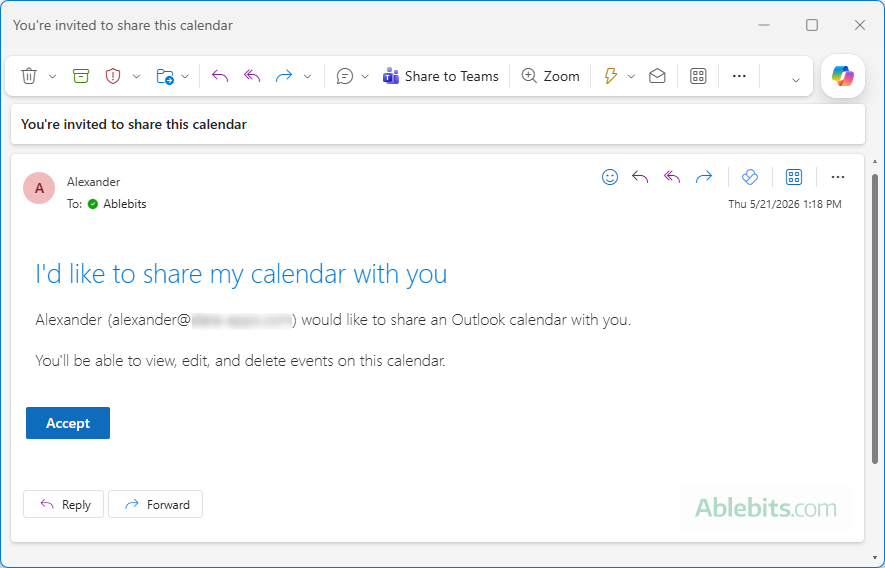
If the recipient did not receive or accidentally deleted the invitation, you can resend it manually without setting up calendar access again:
- In your Sent Items folder, search for the email with the subject "You're invited to share this calendar" – this is the original invitation sent by Outlook.
- If you invited multiple people, make sure you select the correct invitation for that particular recipient.
- Forward the invitation email or resend it as an attachment if you want the recipient to receive the original calendar invite exactly as it was sent.
Outlook shared calendar permissions
In a shared Outlook calendar, permissions determine how much access you wish to provide to other users. The options may vary depending on whether you share with people inside or outside your organization.
- Can view when I'm busy – the recipient can only see when you are busy or available.
- Can view titles and locations – shows your availability as well as subjects and meeting locations.
- Can view all details – gives access to full event information, just like you see it.
- Can edit (for internal users only) – allows the person to create, modify, and delete your calendar items.
- Delegate (for internal users only) – allows someone to manage your calendar on your behalf, including responding to meeting requests and scheduling appointments for you.
Notes:
- Edit and Delegate permissions are only available for people inside your organization and cannot be assigned to external users.
- An additional option called None can be set for your entire organization to block access to your calendar completely.
- In Outlook.com, only two permission levels are available: view and edit.
How to change permissions on shared calendar in Outlook
Changing permissions for a shared calendar is very similar in all versions of Outlook 365 - 2016, the new app, and web.
- In the left pane, right-click the target calendar and select Sharing and Permissions (in new Outlook and web) or Sharing Permissions (in classic Outlook).
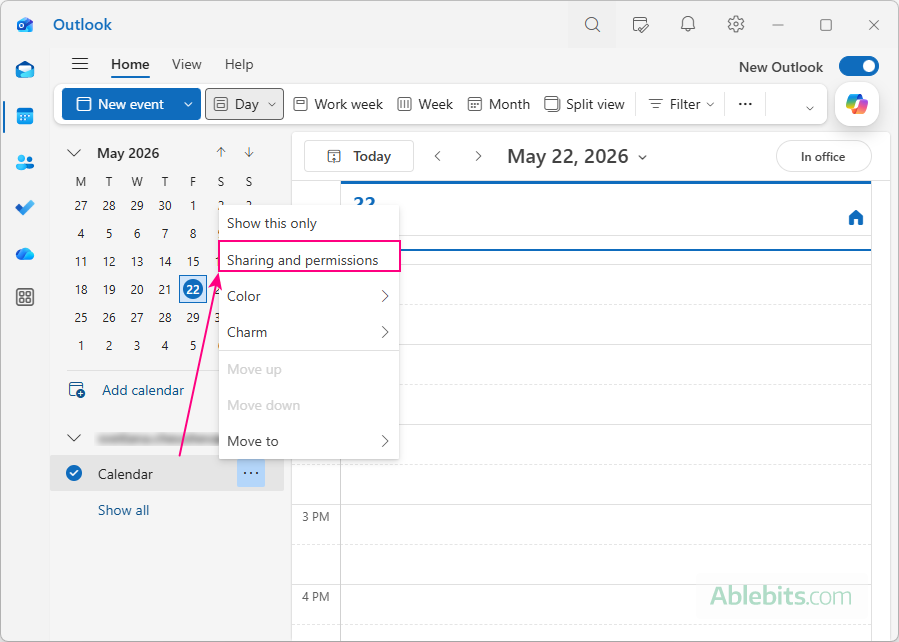
- A window will open showing the list of people your calendar is currently shared with and their existing permissions.
- Select the user, then choose the permission you want to assign.
- The recipient will receive an email notification about the updated permissions, and the shared calendar in their Outlook will automatically reflect the new access level.
The screenshot below shows the Sharing and permissions window in new Outlook. In classic Outlook, the Calendar Properties dialog box opens instead, similar to when you first shared the calendar.
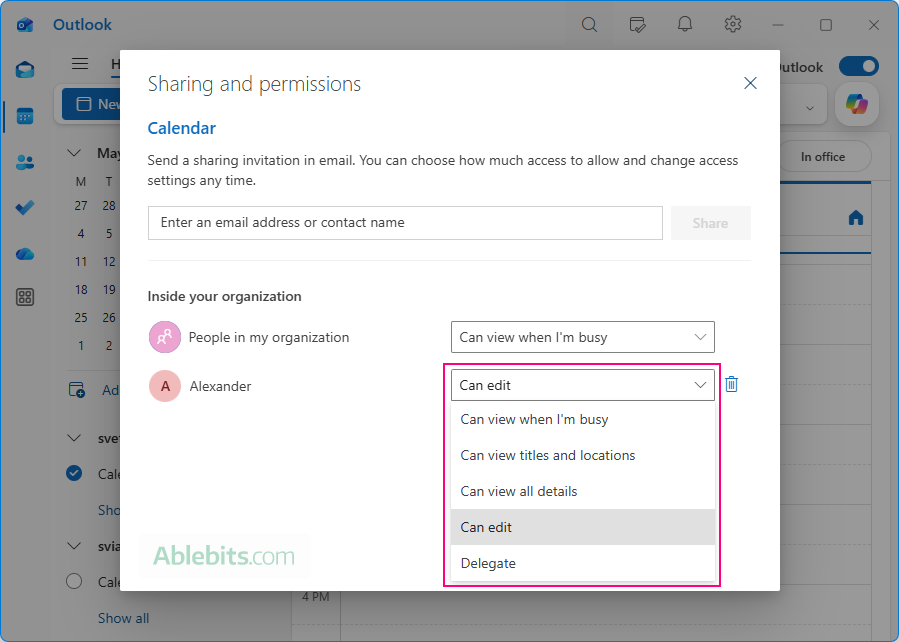
How to stop sharing Outlook calendar
If you no longer want someone to access your calendar, you can remove their permissions at any time. Here is how:
- In the Outlook folder pane, right-click the calendar and select Sharing and permissions.
- In the list of people who currently have access to your calendar, find the user you want to remove, and then:
- In new Outlook and web, click the trash bin icon next to their name.
- In classic Outlook, select the user, click Remove, and then click OK.
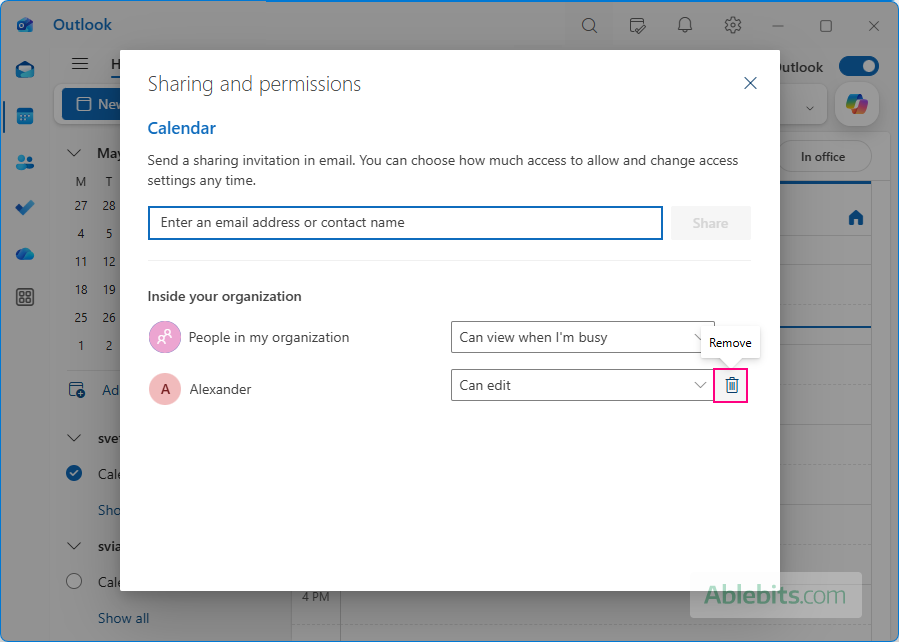
The person will lose access to your calendar. For users inside your organization, the calendar is automatically removed from their Outlook shortly afterward. For external users, their copy of your calendar isn't removed, but it will stop syncing and won't receive any further updates.
How to remove a shared calendar in Outlook
If you don't want to see someone else's calendar in your Outlook any longer, you can either temporarily hide it or remove it completely from your Outlook view.
- To show or hide a shared calendar, select or clear its checkbox in the Folder pane on the left.
- To remove it completely, right-click the calendar and choose Remove.
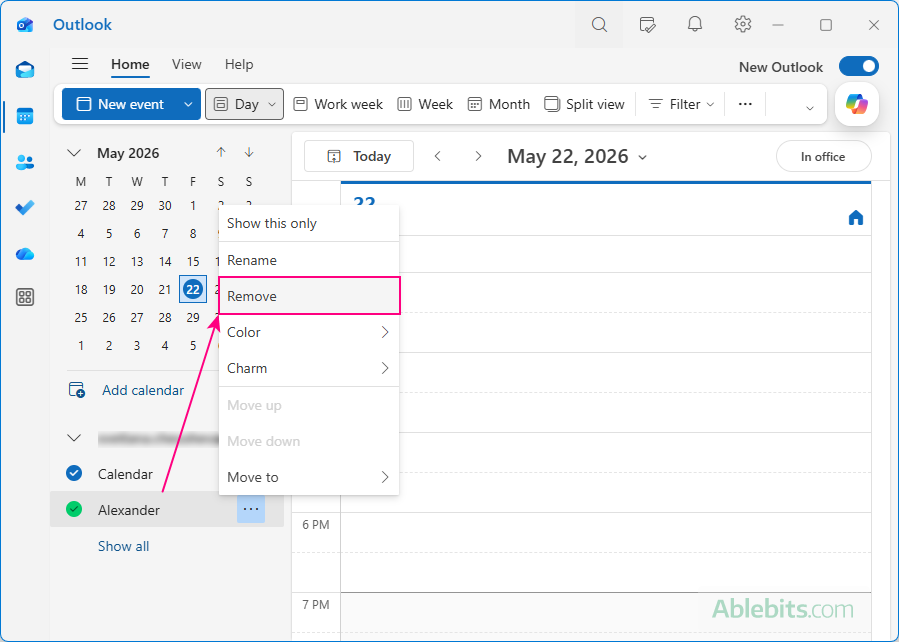
This action is not permanent. It only removes the calendar from your Outlook view and does not affect the sharing permissions set by the owner. As long as access has not been revoked, you can add that calendar again later using the original invitation.
Why can I not share my Outlook calendar?
If the Share Calendar button is grayed out or missing in Outlook, the most common reason is that your account does not support calendar sharing. This usually happens with non-Exchange accounts such as POP3 or IMAP. In some cases, your organization's administrator may also disable calendar sharing for security or policy reasons.
If you receive an error such as "This calendar can't be shared with one or more of the people" when sending an invitation, possible causes include:
- The email address you entered is invalid or misspelled.
- You are trying to add a contact group or distribution list, which is not supported.
- The person is already in your sharing permissions list.
- You are trying to give access to someone outside your organization while external calendar sharing is disabled by your company's policies.
Outlook shared calendar not updating
Shared Outlook calendars are supposed to update almost in real time, but in practice, this largely depends on the account type of both parties: the owner and the invitee.
When both people use Microsoft 365 work or school accounts within the same organization (tenant), updates sync almost instantly. The same is generally true for Outlook.com accounts shared with other Outlook.com or Microsoft 365 users.
However, calendars shared outside your organization (cross-tenant sharing) refresh periodically rather than instantly. This means external users may not see new meetings, edits, or cancellations until the next synchronization cycle, which may take a few hours. As a result, many people think their shared calendar is broken while it is actually just waiting to refresh.
Considering the above, near real-time synchronization is available only in these scenarios:
- Both persons are in the same organization, using Microsoft 365 work or school accounts.
- Both persons have Microsoft personal accounts such as @outlook.com, @hotmail.com, @live.com, or @msn.com.
How to fix Outlook shared calendar not syncing
If the shared calendar still does not update after waiting for some time, ask the owner to review the sharing permissions. Old, duplicate, or corrupted permission entries can sometimes cause synchronization problems. Removing the affected user from the sharing list and then adding them again often resolves the issue.
If that does not help, try these general Outlook fixes:
- Turn off Cached Exchange Mode. In classic Outlook, this feature can sometimes delay calendar updates.
- Update Outlook. Installing the latest Microsoft 365 and Office updates may fix known synchronization issues.
- Open Outlook in Safe Mode. This starts Outlook without add-ins and helps determine whether an extension is causing the problem.
If none of these solutions help, the issue may be related to your organization's Exchange Server or Microsoft 365 configuration. In that case, contact your IT administrator or Microsoft support team for further assistance.
Outlook calendar sharing FAQ
Here are answers to some common questions about sharing calendars in Outlook.
Can I share my Outlook calendar with people outside my organization?
Yes, you can share your Outlook calendar with users outside your organization, provided external sharing is allowed by your company's Microsoft 365 admin center settings.
What is the difference between sharing and publishing an Outlook calendar?
Sharing a calendar gives access to specific people whose permissions you control. Depending on the access level, they may be able to view items, edit events, or manage the calendar for you.
Publishing a calendar creates a read-only version that anyone with the link can access. People can open it in a web browser or subscribe to it using an ICS link in another email or calendar app. This is often the easiest way for non-Outlook users to view your calendar.
What is the difference between editor and delegate in Outlook calendar?
With edit permissions, a person can create, modify, and delete calendar items.
Delegate access includes editing permissions but also allows someone to manage your calendar on your behalf, including scheduling meetings and responding to invitations for you.
Is it possible to share part of an Outlook calendar?
Not directly. Outlook gives access to the entire calendar, but you can create a separate one for specific projects and make only that calendar available to others.
How to stop receiving emails notifications from a shared Outlook calendar
To stop receiving email notifications and updates from a shared calendar, manage your preferences in new Outlook or Outlook on the web:
- Click the Settings gear icon in the top-right corner.
- Go to Calendar > Shared calendars.
- Under Calendar updates, clear the notification options for all shared calendars or only a specific one.
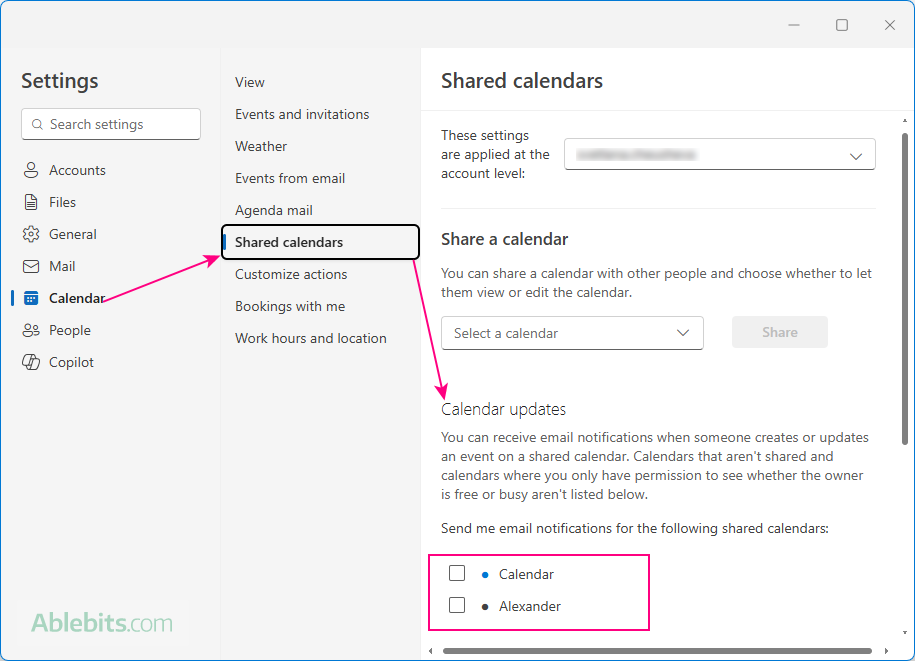
How to share Outlook calendar with color categories
The short answer is "it's not possible".
In Outlook, color categories are linked to each user's personal profile. When you share a calendar, the recipient can see the events, but the category colors are not transferred.
To keep the same colors, other users need to manually create matching category names in their own Outlook category list and then assign those categories to the shared calendar's events.
How to change color categories in a shared Outlook calendar
You can change categories in a shared calendar the same way you do in your own calendar.
Simply right-click the event, select Categorize, and choose a color category. To do this, you need edit permissions for the shared calendar.
What's next?
After access has been provided by the owner, the recipient must accept an invitation or manually add a calendar to their Outlook.
For detailed instructions, see:
Now that you know how to create a shared calendar in Outlook, you can choose the setup that best fits your needs, from simple view-only permissions to full delegate access. And if something does not work as expected, you also know where to look first 😊
2 comments
Whilst this article has solved my question of how I add my colleagues calendars in the old outlook desktop app, I would like to be able to do the same in the 'new' outlook layout. How can I do this and is there an article already explaining this?
Hi Henry,
Thank you for your comment. We have updated the article to include instructions for the new Outlook as well. Please see the section "How to share calendar in new Outlook and web".